
WebOke Backups: viewing, restoring, or downloading a backup
WebOke Backups is our own backup system. Every night we make a complete backup of your hosting package: your files, databases, mailboxes and settings. We store those backups encrypted on separate storage servers in a separate data center, under our own management, so separate from the server your website runs on. You can restore something yourself, for free and without our involvement, from the backups of the past 30 days.
In this article:
- What's in the backup?
- Opening WebOke Backups
- The wizard in six steps
- The four ways of restoring
- Downloading and uploading
- Previous restores
- Frequently asked questions
What's in the backup?
For each hosting package we keep per night:
- all files in your home folder, so also your websites;
- your databases, including the database users with their passwords and permissions;
- your mailboxes and the mail settings (aliases, filters, autoresponders);
- the DirectAdmin configuration: domains, subdomains and redirects;
- DNS zones, SSL certificates, cronjobs, FTP accounts and your PHP version.
For a mail package we keep the mailboxes and the DirectAdmin settings.
Opening WebOke Backups
- Log in at mijn.weboke.nl.
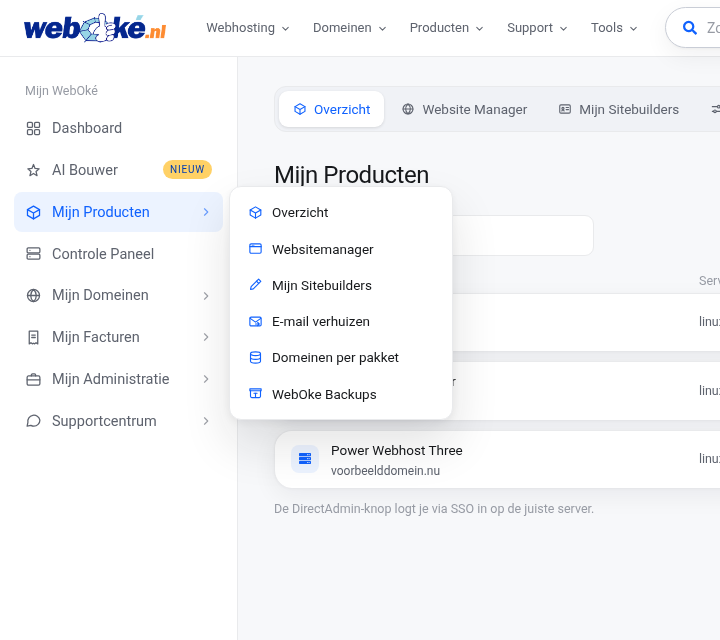
- In the menu on the left, go to Mijn Producten and choose WebOke Backups in the submenu. On every product page, WebOke Backups is also in the tab bar at the top.
- You can also go directly to mijn.weboke.nl/backups.
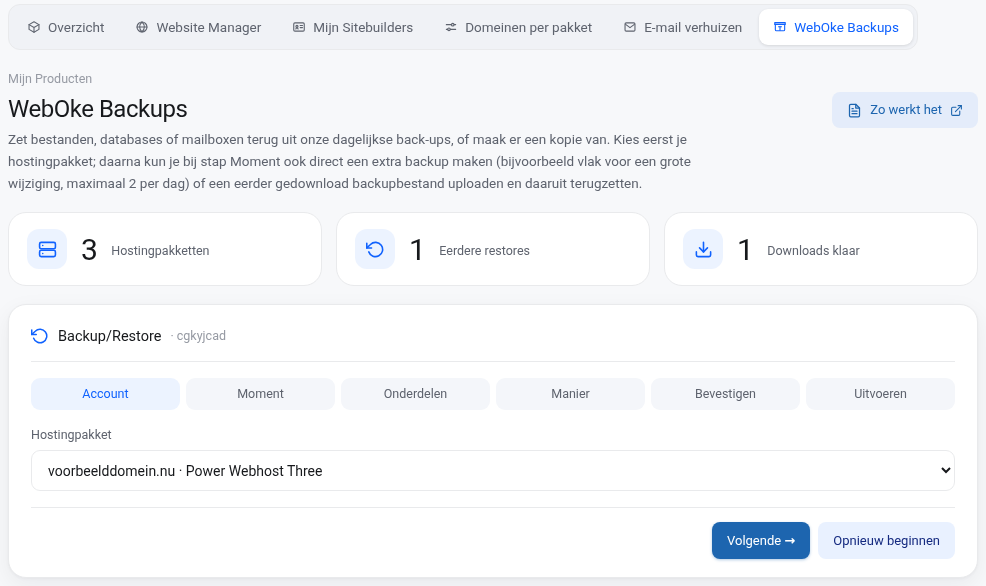
At the top of the page you see three tiles: the number of hosting packages, the number of previous restores and the number of downloads ready for you. The Zo werkt het button opens this article. Below that is the wizard you use to restore, followed by your previous restores, your downloads and uploads, and a brief explanation of the ways of restoring.
The wizard in six steps
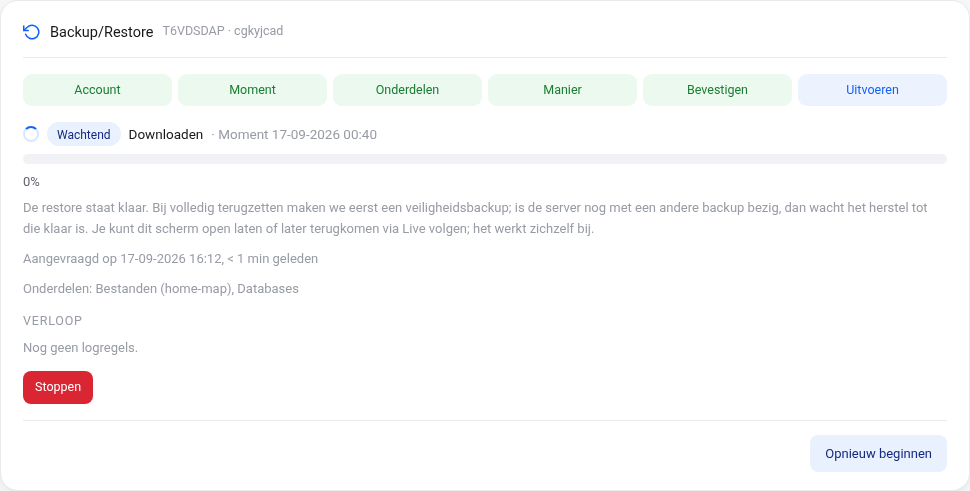
The wizard takes you through six steps. Use Next and Back to move through the steps, and Start over to start over.
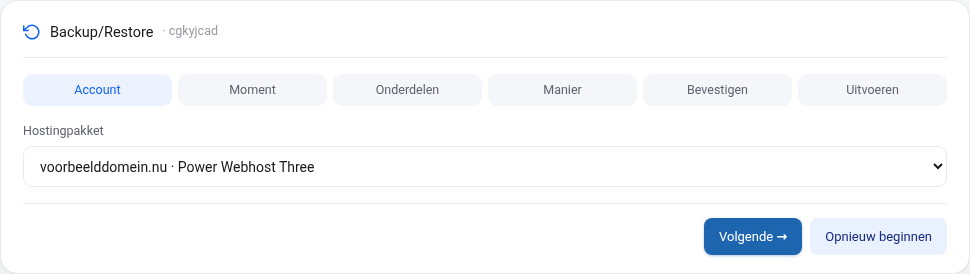
Step 1: Account
Choose the hosting package you want to restore something from. If you have many packages, a search field appears above the list. If you have a reseller package, you then choose which account it concerns: your own account or one of the accounts you've created.
Step 2: Moment
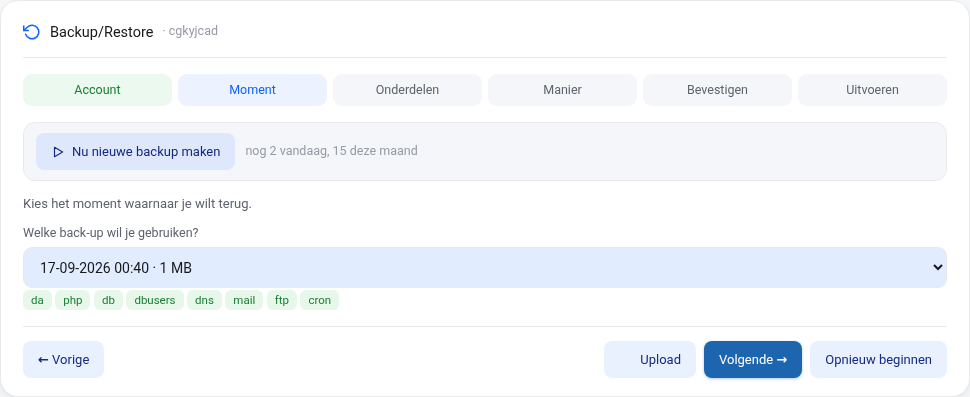
You see all available backup moments with date, time and size. The most recent one is selected by default. Choose the moment you want to restore to. Below the selection list you can see which parts are included in that moment.
In this step you can also do two other things:
- Nu nieuwe backup maken: immediately create an extra backup of your account, for example right before a major change to your website. This can be done up to 2 times a day and 15 times a month. As soon as the backup is ready, the new moment appears in the list. Per day we ultimately keep the last backup of that day, so an extra backup is mainly a restore point for that day itself.
- Upload (the button at the bottom): restore from a backup file (.tar.gz) that you previously downloaded via this screen. The file is automatically deleted again after 48 hours.
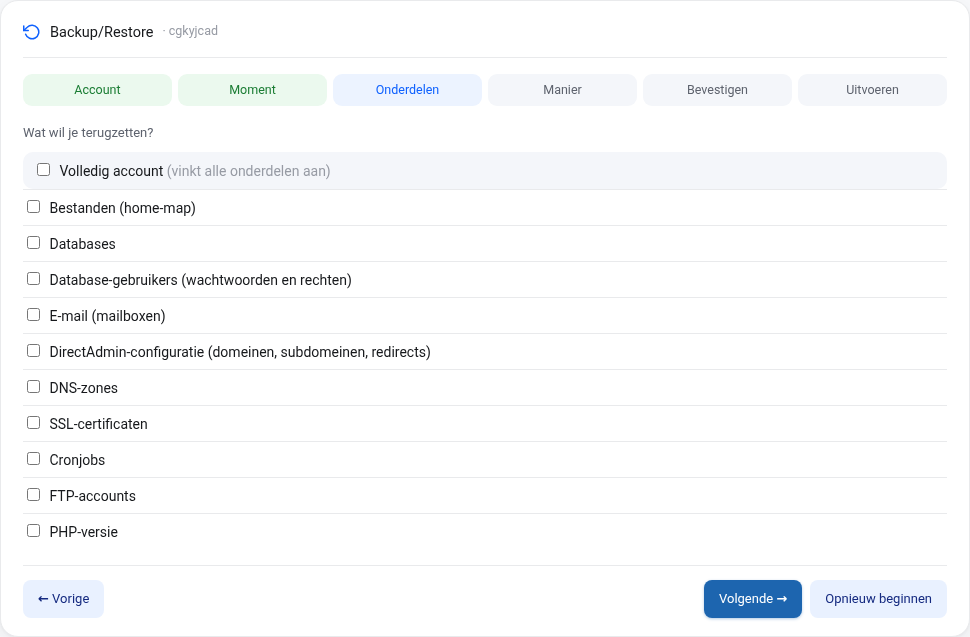
Step 3: Onderdelen
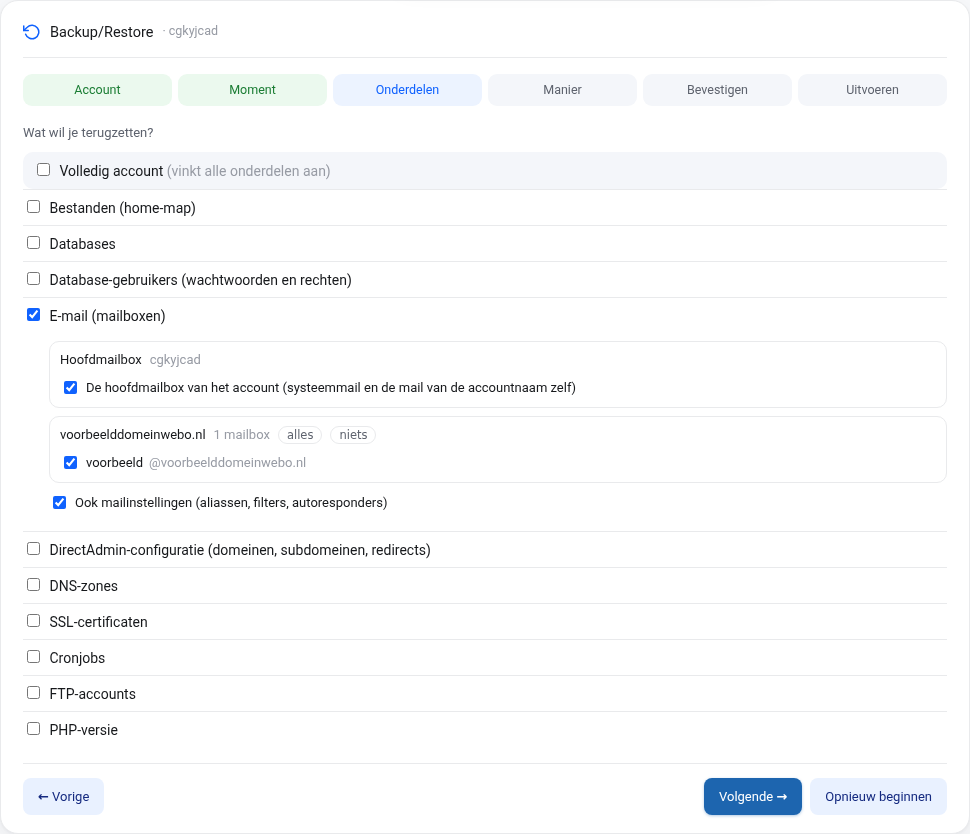
Check what you want to restore. You can choose one or more parts:
- Bestanden (home-map): the entire home folder, or only certain folders and files. If you choose the latter, you browse through the backup like in Bestandsbeheer, or you search by name (minimum 3 characters) and check what you need.
- Databases and Database-gebruikers (passwords and permissions).
- E-mail (mailboxen): the main mailbox of the account and per domain all or individual mailboxes, optionally also the mail settings.
- DirectAdmin-configuratie, DNS-zones, SSL-certificaten, Cronjobs, FTP-accounts and PHP-versie.
With Volledig account you check everything at once. For a mail package you can only choose mailboxes and the DirectAdmin settings.
Step 4: Manier
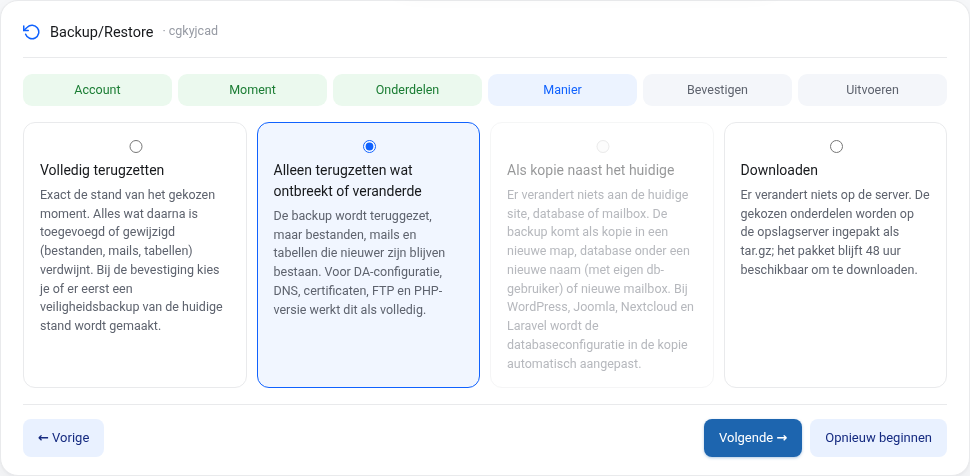
Choose how you want to restore. The four ways are explained further on in this article.
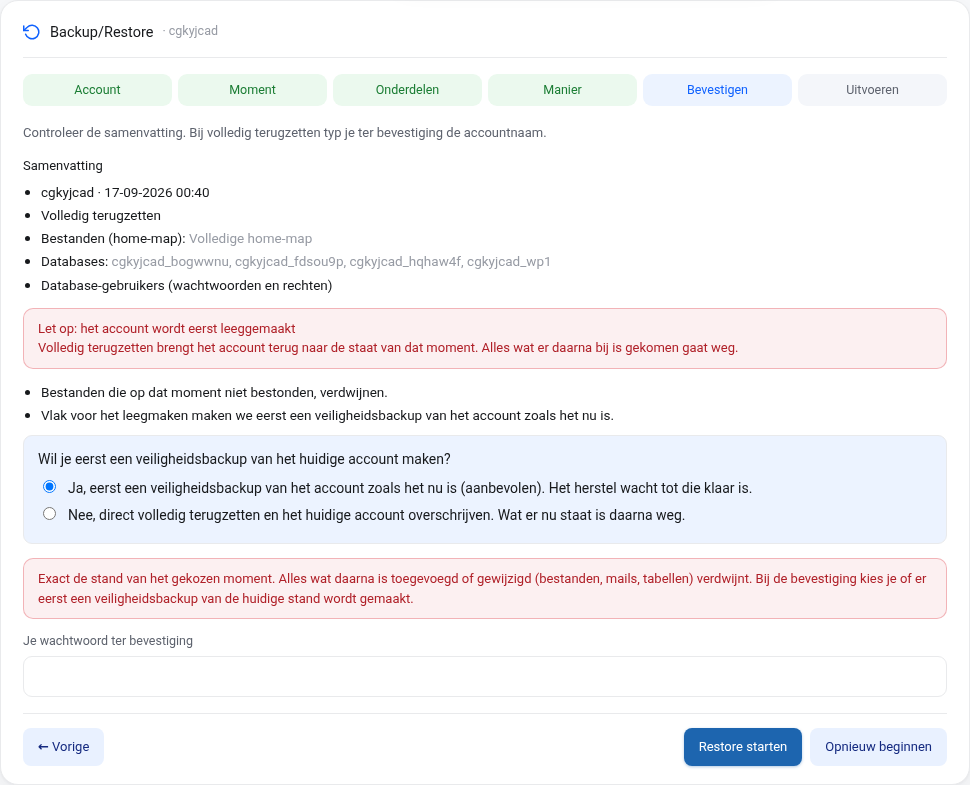
Step 5: Bevestigen
You see a summary of your choices. If you choose full restore, you first see what disappears when the account is emptied and what will be recreated. You choose whether we make a safety backup of the current state beforehand (recommended, on by default) and you enter your password to confirm. Then click Restore starten. For a full restore, we'll ask you once more to make sure.
Step 6: Uitvoeren
The restore goes into the queue and usually starts within a minute. If a backup is running on the server at that moment, the restore waits until it's finished; for a full restore, we first wait for the safety backup. You see step by step what's happening, the screen updates itself. You can safely close the page: at the top of the WebOke Backups page the notice Er loopt een herstel remains with the Live volgen button, and as soon as the restore is finished, or should it fail, you'll receive an email. You can abort a running restore with Stoppen, and start a failed restore again with Opnieuw proberen. As long as a restore is running, you can't start a new restore for that account.
The four ways of restoring
- Volledig terugzetten: exactly the state of the chosen moment. The account is first emptied and then restored; anything added or changed after the chosen moment (files, mails, tables) disappears. At confirmation you choose whether we first make a safety backup of the current state, so you can always go back. That option is on by default.
- Alleen terugzetten wat ontbreekt of veranderde: the backup is restored, but files, mails and tables that are newer than the backup remain in place. Handy if you accidentally deleted something. For the DirectAdmin configuration, DNS, certificates, FTP and the PHP version this works the same as a full restore.
- Als kopie naast het huidige: nothing changes about your current website, database or mailbox. The backup is placed as a copy in a new folder, as a database under a new name (with its own database user) or as a new mailbox. This way you can calmly review what was in the backup. For WordPress, Joomla, Nextcloud and Laravel we automatically adjust the configuration file of the copy to the new database. If you want to view the copy under a different URL, you enter it. The new database details are shown only once, so save them immediately.
- Downloaden: nothing changes on the server. The chosen parts are packed as a tar.gz file that you can download for 48 hours. You can receive an email as soon as the package is ready.
Downloading and uploading
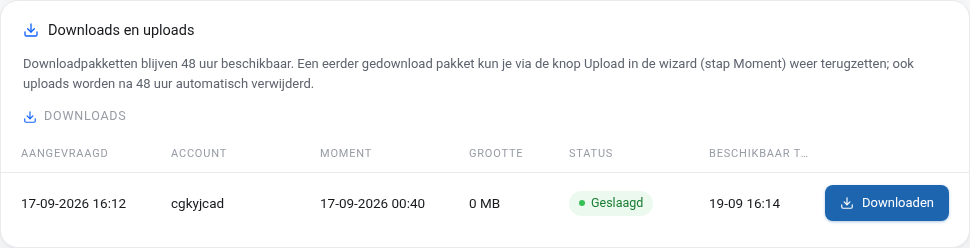
Below the wizard is the overview Downloads en uploads. A download package remains available for 48 hours, and the download link only works if you're logged in. A previously downloaded package can be restored again later: in the Moment step choose Upload, select the file and go through the remaining steps. Uploads are also automatically deleted after 48 hours.
Previous restores
Every restore appears in the Eerdere restores list with the date, an eight-character restore code, the account, the moment, the method, the parts and the status. Click Resultaat to open the report, which shows, for example, how many files were restored and in which folder. If a restore is still running, it shows Live volgen. Mention the restore code if you have a question for us about a restore.

Frequently asked questions
How long are backups kept?
There's a backup from every night of the past 30 days.
Will I lose what changed after the backup?
With a full restore, yes. Not sure? Then choose Alleen terugzetten wat ontbreekt of veranderde or a copy. With a full restore, leave the safety backup turned on, so we can always still retrieve the state from right before the restore.
How long does a restore take?
That depends on the amount of files and mail. A single folder or database is usually back within a minute, a complete account with a lot of mail can take longer. You don't have to wait: you'll receive an email as soon as it's done.
I don't see WebOke Backups in my menu.
WebOke Backups is enabled for every hosting package and mail package. If you don't see the item, your account doesn't have an active package, or you're logged in as a sub-user without access to products. Log in as the main account or open a ticket.
Can't figure it out?
Open a ticket via the Support Center, and we'll help you further.