
Chapter 11 · 11.6
Creating and managing FTP accounts
With FTP, you transfer files between your computer and your hosting package using a program such as FileZilla. Every package has a default FTP account. You can also create extra FTP accounts yourself, for example for your web developer, with access to just one directory.
The default FTP account
The default account has the same details as DirectAdmin itself:
- User Name: your DA user name, for example wtsilefl (see Finding your server name and DA user name).
- Password: your DA password. If you don't know it, set a new one via My WebOké (see Setting or changing your DA password).
- Directory: the main directory of your package, containing all your domains.
If you change your DA password, the password for this FTP account changes along with it. Make sure to update it in FileZilla too.
Opening FTP Management
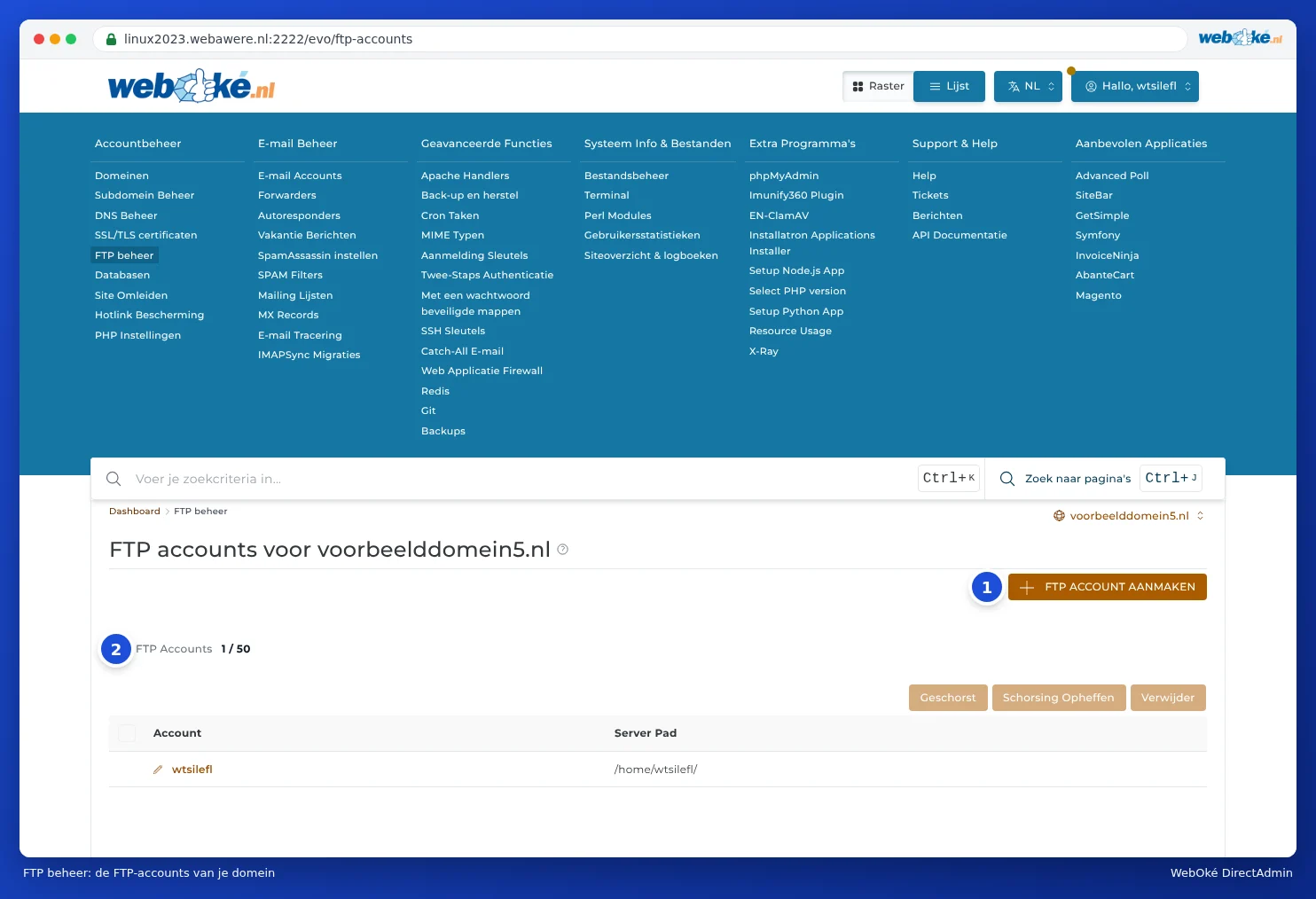
In DirectAdmin, under Account Manager, click FTP Management. You'll see the FTP accounts for the selected domain, each with the directory it works in (Server Path). If you have multiple domains, choose the domain at the top right (see Working with multiple domains: the domain selector).
Creating an extra FTP account
- Click CREATE FTP ACCOUNT.
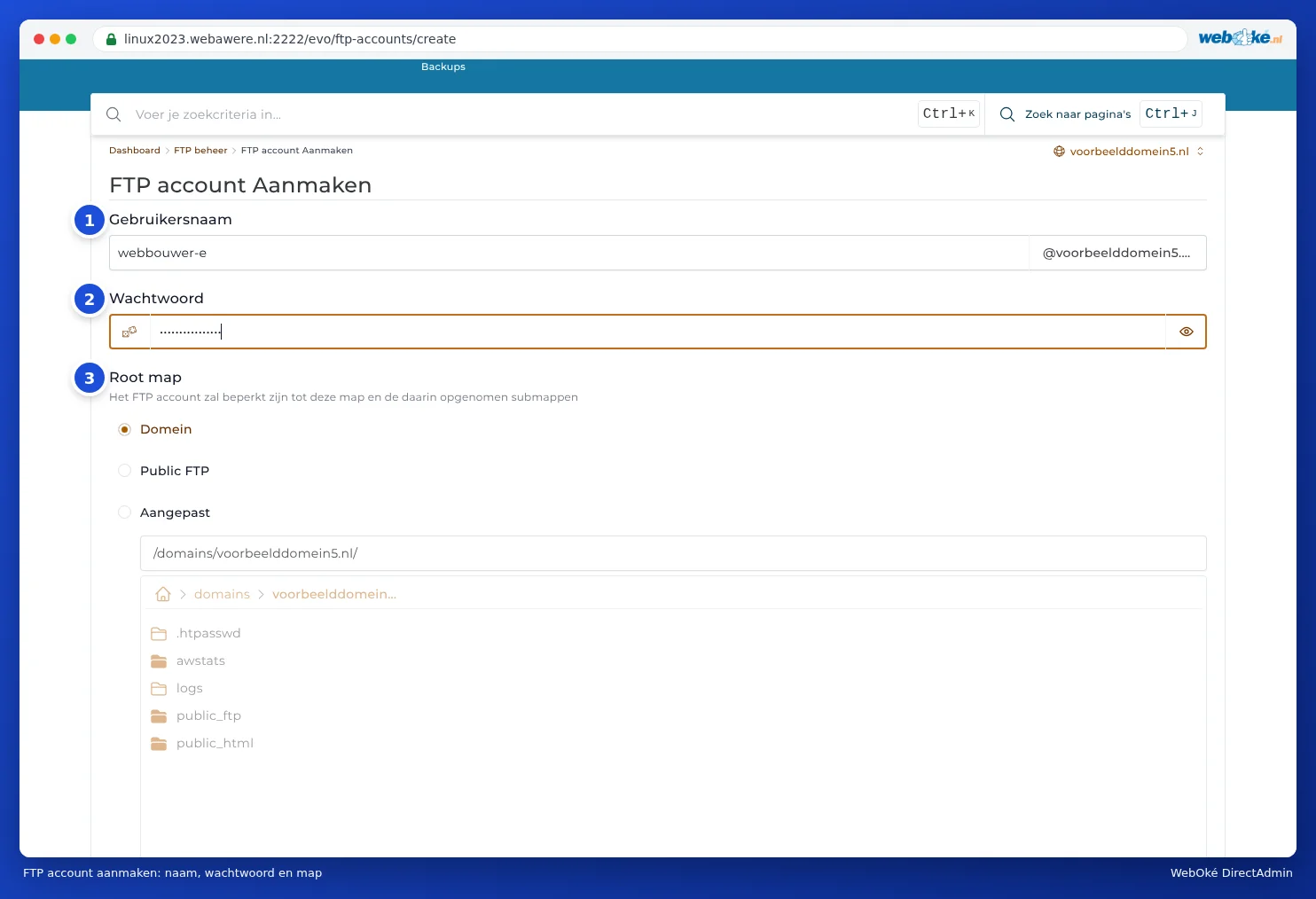
- Under User Name (1), type a name, for example webdeveloper. This will automatically be followed by @yourdomain.com.
- Under Password (2), type a strong password, or have one generated using the button in the field.
- Under Root directory (3), choose what this account may access:
- Domain: the domain's directory (domains/yourdomain.com), containing public_html. The usual choice for anyone working on your website.
- Public FTP: only the public_ftp directory. Rarely needed.
- Custom: a directory you choose yourself, for example just public_html/photos. Select the directory from the list below.
- Click CREATE.
You'll see the message FTP account created, with the name to log in with (under Sign up), the password (click Show) and the path. The account works straight away. It can only access the chosen directory and the directories below it; anything above it is invisible. When the account logs in with FileZilla, it sees the chosen directory as the root directory (/). With the Domain option, this means public_html, logs and the other directories of the domain appear there.
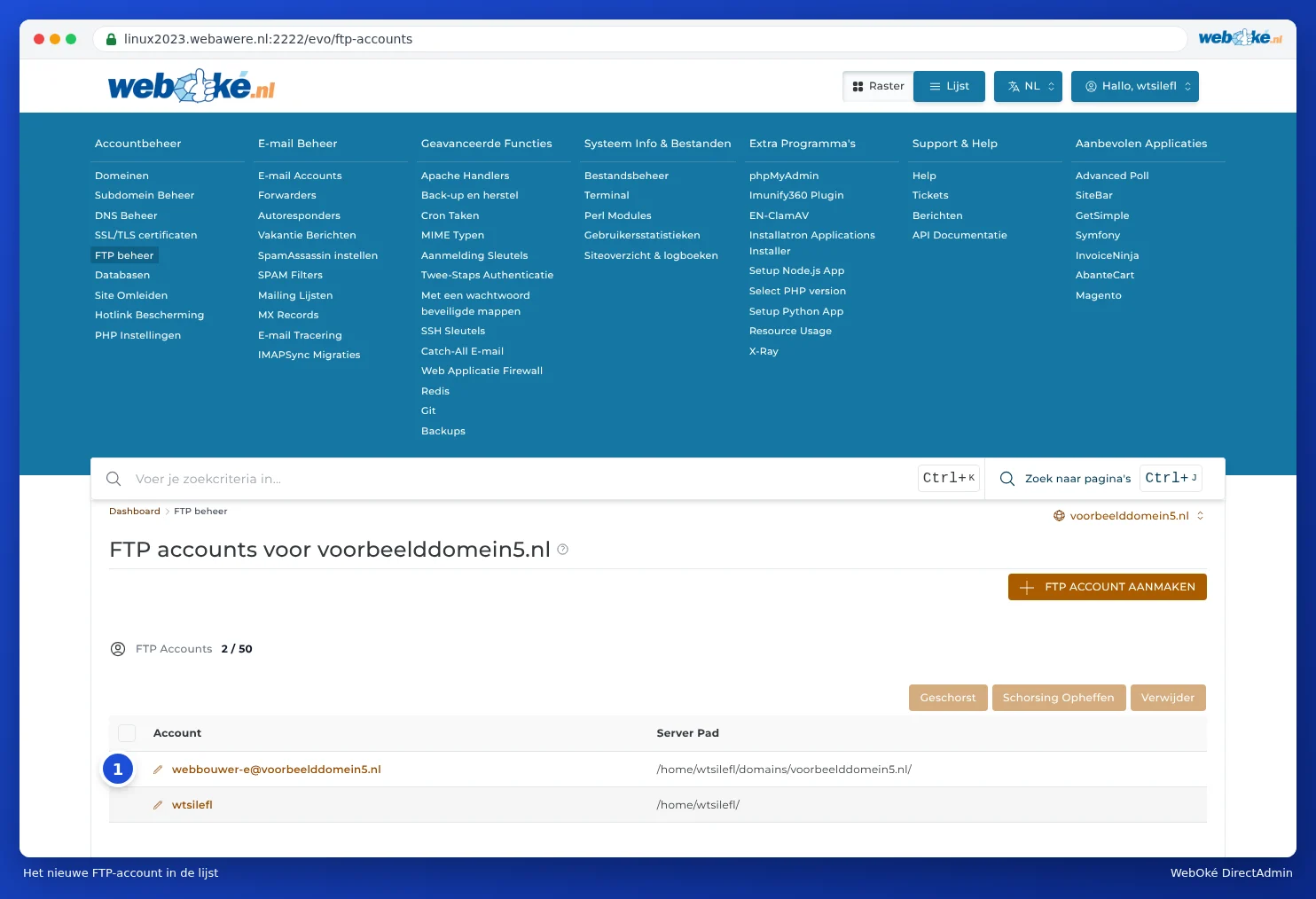
Please note: The user name to log in with is the full name, so webdeveloper@yourdomain.com, not just webdeveloper. If you forget the part after the @, you'll get a message that login failed (530 Login incorrect).
Editing, suspending or deleting an FTP account
- Changing the password or directory: in the list, click the account name (with the pencil icon in front of it) and adjust the password or directory.
- Temporarily blocking: tick the account and click Suspend. Use Unsuspend to turn it back on.
- Deleting: tick the account and click Delete. The files remain in place; only the access is removed.
Tip: Always give anyone working on your website their own FTP account instead of your DA details. Once the work is finished, delete the account again. This way, you can be sure no one can access it later. If someone also needs to work in DirectAdmin itself, check out Login Keys (see Login Keys: logging in for scripts and programs).
Can I also do this in My WebOké?
You create and manage FTP accounts in DirectAdmin. In My WebOké, you do set the DA password, which also sets the password for the default FTP account (see Setting or changing your DA password).