
Chapter 6 · 6.4
Transitions and animations
Watch it in a short video
A transition is the effect between two slides, such as fading or sliding. An animation is an effect on a single element of a slide, for example a bullet list that appears line by line. Use them sparingly: a calm presentation is more pleasant to follow.
Choosing a transition
- Select the slide in the slide overview.
- Go to the Transitions tab and choose an effect (1), for example Fade, Push or Morph.
- Use Options (2) to choose the direction, and Duration (3) to set how long the effect takes.
- Click Preview (4) to view it, or Apply to all slides (5) to use the same transition throughout the presentation.

Tip: with Morph, elements appear to move from one slide to the next. Duplicate a slide, move or resize something on the copy, and choose Morph as the transition.
Adding an animation
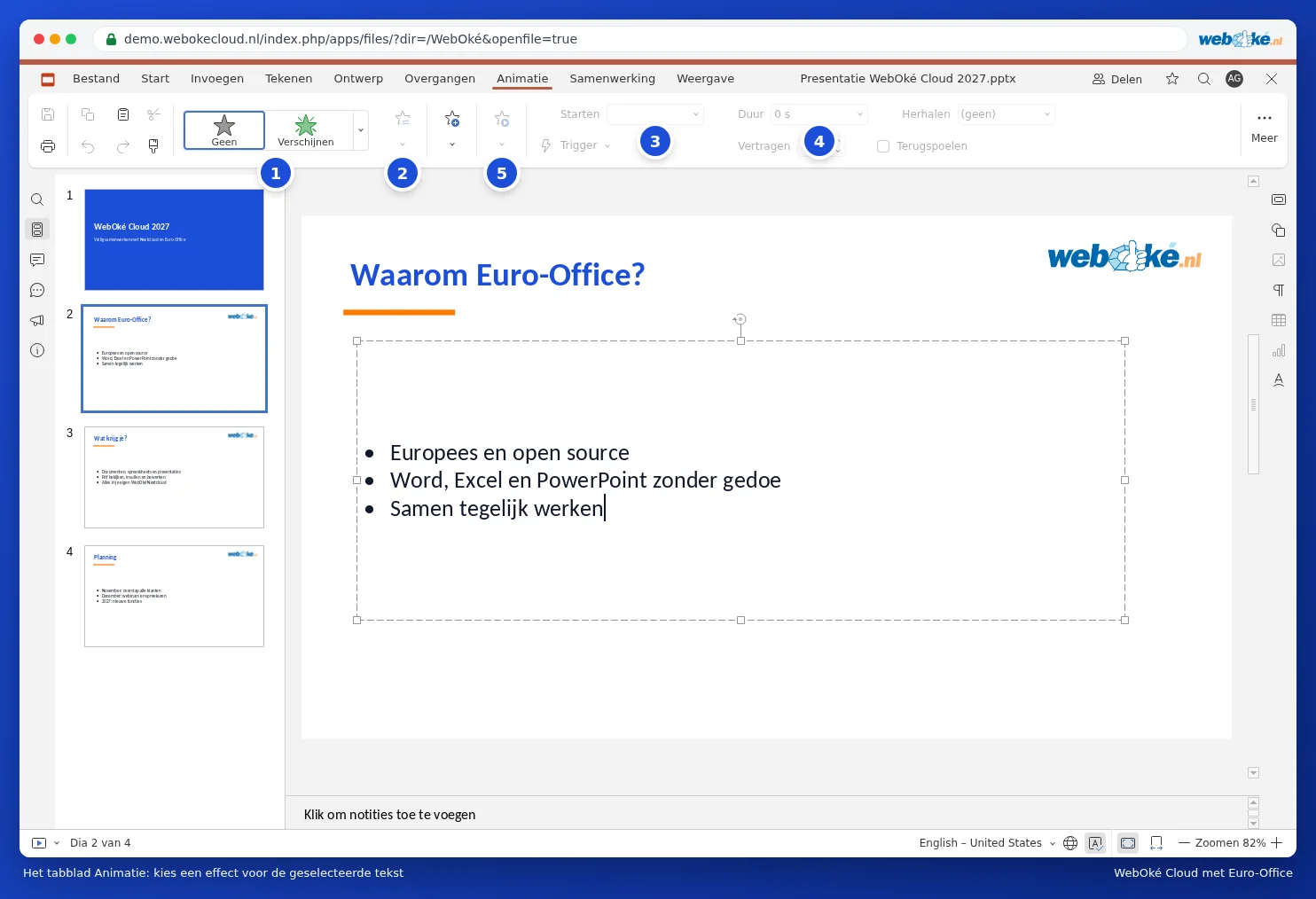
- Click the text or object that should move.
- Go to the Animation tab and choose an effect (1). Use Show more effects to see all entrance, emphasis and exit effects.
- Use Options (2) to choose, for example, whether a bullet list appears paragraph by paragraph.
- Under Start (3), choose when the effect begins: On Click, With Previous or After previous. Use Duration (4) to set the speed.
- Click Preview (5) to see it.
If a slide has multiple animations, you'll see small numbers next to the elements. Use Bring Forward and Send Backward to change the order.