
Chapter 7 · 7.2
Annotations, highlights and comments in a PDF
On the Comment tab, you can add annotations to a PDF, just like using a pen and highlighter on paper. Handy for reviewing a quote, contract or design.

The tools
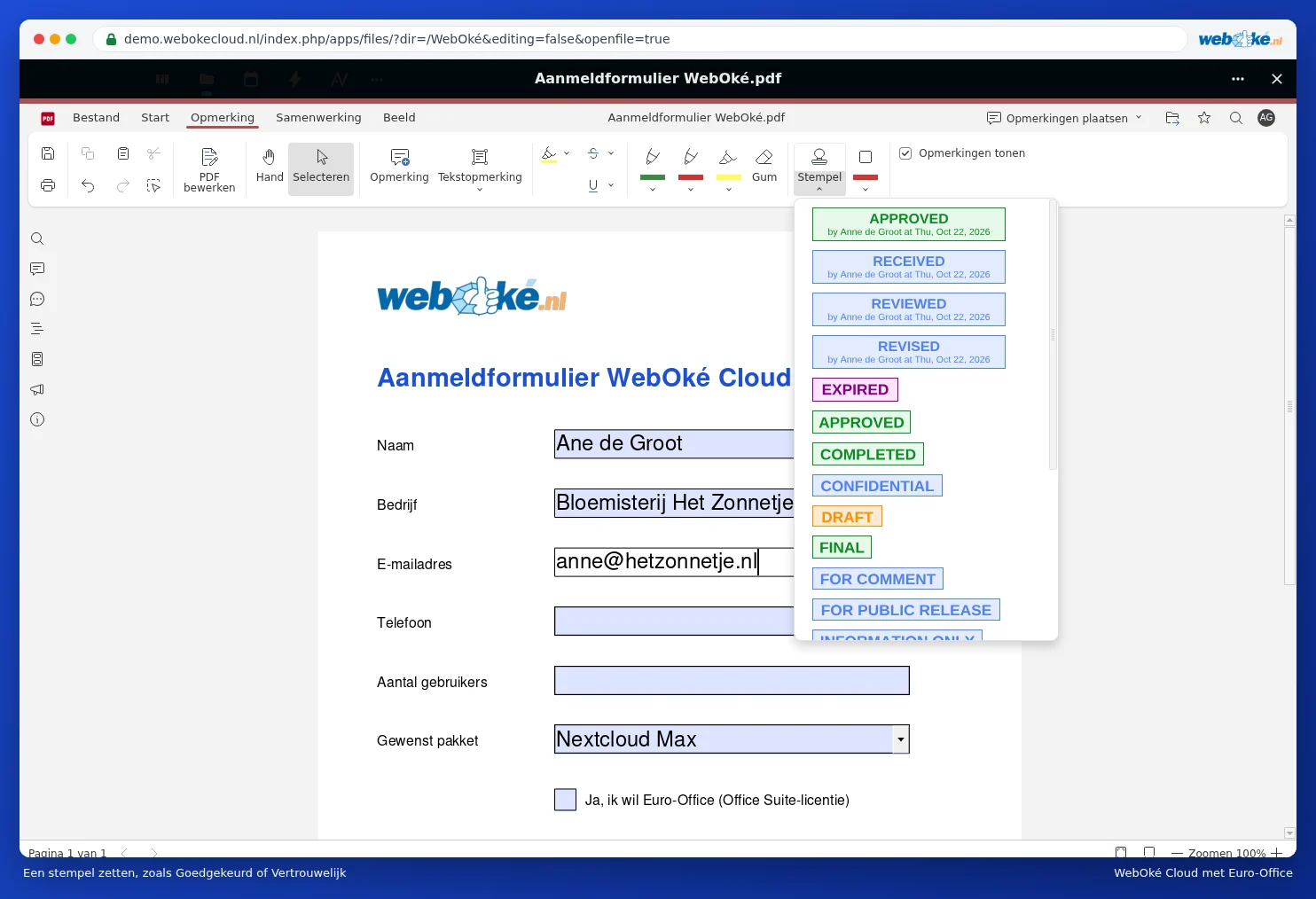
- Comment (1): a note at a spot in the PDF. Your colleagues can see it and respond to it.
- Text Comment (2): text placed directly on the page, or a speech bubble with an arrow.
- Highlight, Strikethrough and Underline (3): select text in the PDF and choose the colour.
- The pens (4): draw freely with a pen or highlighter. Use the Eraser to remove it again.
- Stamp (5): place a stamp such as APPROVED or CONFIDENTIAL on the page.
- The shape (6): a rectangle, circle, arrow or line to point something out.
Viewing and replying to comments
Click the speech bubble icon on the left to see all comments listed below one another. Click a comment to jump to it, to reply, or to mark it as resolved. Use the Show Comments checkbox to hide the comments from view for a moment.
Please note: annotations are saved within the PDF itself. They remain visible even if you download the PDF and open it in another programme.