
Chapter 9 · 9.9
Calendar and contacts on the iPhone and iPad
Your iPhone and iPad can work directly with your WebOké Nextcloud calendar and contacts. You don't need an extra app: in the settings, you add a CalDAV account for your calendars (and tasks) and a CardDAV account for your contacts. After that, you'll see everything in the regular Calendar, Contacts and Memories apps, and anything you change there is updated straight away in your Nextcloud.
What do you need?
| Details | Where to find it |
|---|---|
| The address of your Nextcloud | The address in your browser's address bar, for example yourname.webokecloud.nl |
| Your username | The name you log in with |
| An app password | You'll create this in step 1 |
Please note: your regular password won't work here. Your WebOké Nextcloud asks for an extra code when you log in, and a calendar or contacts app can't fill that in. So use an app password instead: a separate password for one device or program. You'll find out how to create one in App passwords: when and how to use them; a short version follows below.
Step 1: create an app password
- Log in to your WebOké Nextcloud on your computer, click your profile picture in the top right and choose Settings.
- Click Security on the left and scroll to Devices & sessions.
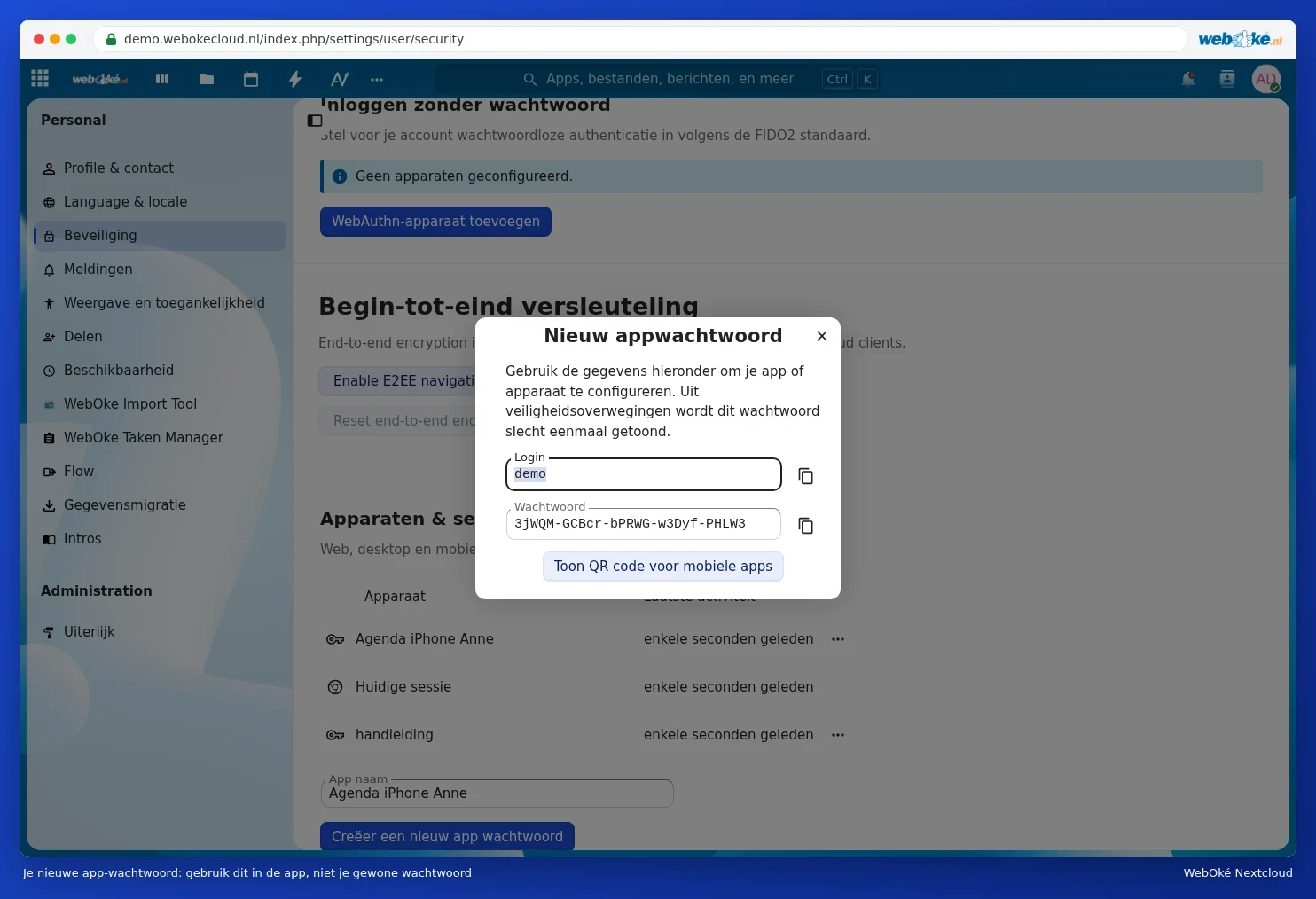
- Enter a recognisable name under App name (1), for example iPhone calendar, and click Create new app password (2). Your Nextcloud may ask for your regular password again.
- You'll now see your Login (your username) and a long Password. Leave this window open, you'll need it shortly. The password is only shown once.

Tip: do you also have a Mac? Copy the password on the Mac and paste it on your iPhone. With the same Apple account, copying and pasting between your devices works automatically.
Step 2: add your calendar (CalDAV)
- Open the Settings app on your iPhone or iPad.
- iOS 18 and later: tap Apps, then Calendar, then Calendar Accounts. On an older iOS version, tap Calendar and then Accounts.
- Tap Add Account, choose Other at the bottom and tap Add CalDAV Account.
- Fill in the details as shown in the table below and tap Next.
- Turn on Calendars, and also Reminders if you want to see your tasks. Tap Save.
| Field on the iPhone | What to enter |
|---|---|
| Server | <your-address>, for example yourname.webokecloud.nl |
| Username | Your username (also shown in the app password window) |
| Password | The app password from step 1 |
| Description | The iPhone fills this in itself; you could change it to WebOké Nextcloud |
Does the iPhone say it can't verify the account? Try again and enter the full address under Server:
https://<your-address>/remote.php/dav/principals/users/<username>/
You can also copy this address from your Nextcloud: open Calendar, click Calendar settings at the bottom left and click the copy button (2) next to Server Address for iOS and macOS under CalDAV.

Step 3: add your contacts (CardDAV)
- In Settings, go to Apps, Contacts, Contact Accounts (on an older iOS version: Contacts, Accounts).
- Tap Add Account, Other and Add CardDAV Account.
- Enter the same server, username and app password as for the calendar and tap Next.
You can use the same app password on the same device for both the calendar and contacts.
Step 4: check that it works
- Open the Calendar app and tap Calendars at the bottom. Your Nextcloud calendars appear under the name of the new account. Tick the ones you want to see.
- Open Contacts and tap Lists at the top left: you'll see your Nextcloud address book.
- Create a test appointment in your Nextcloud calendar on the iPhone and check in your browser whether it appears in your Nextcloud.
New appointments and contacts straight into your Nextcloud
Want new appointments and contacts to go straight into your Nextcloud, instead of iCloud or your iPhone? Then set your Nextcloud as the default:
- Calendar: Settings, Apps, Calendar, Default Calendar.
- Contacts: Settings, Apps, Contacts, Default Account.
Tip: do you also use the Nextcloud app for your files? That's separate from this; calendar and contacts always run through your iPhone's settings. See The Nextcloud app on iPhone or iPad for the app.
Not working? Check Calendar or contacts don't show up on the phone. Your tasks on the iPhone: Tasks on your phone: Reminders on the iPhone, Tasks.org on Android.