
Chapter 9 · 9.5
Letting people book appointments through a booking page
With an appointment schedule, you let clients, students or members book an appointment with you themselves. You decide when you're available and how long an appointment lasts. You send round a link; whoever opens it only sees the free slots and picks one. The appointment is added to your calendar automatically. You don't need a separate booking service.
Creating an appointment schedule
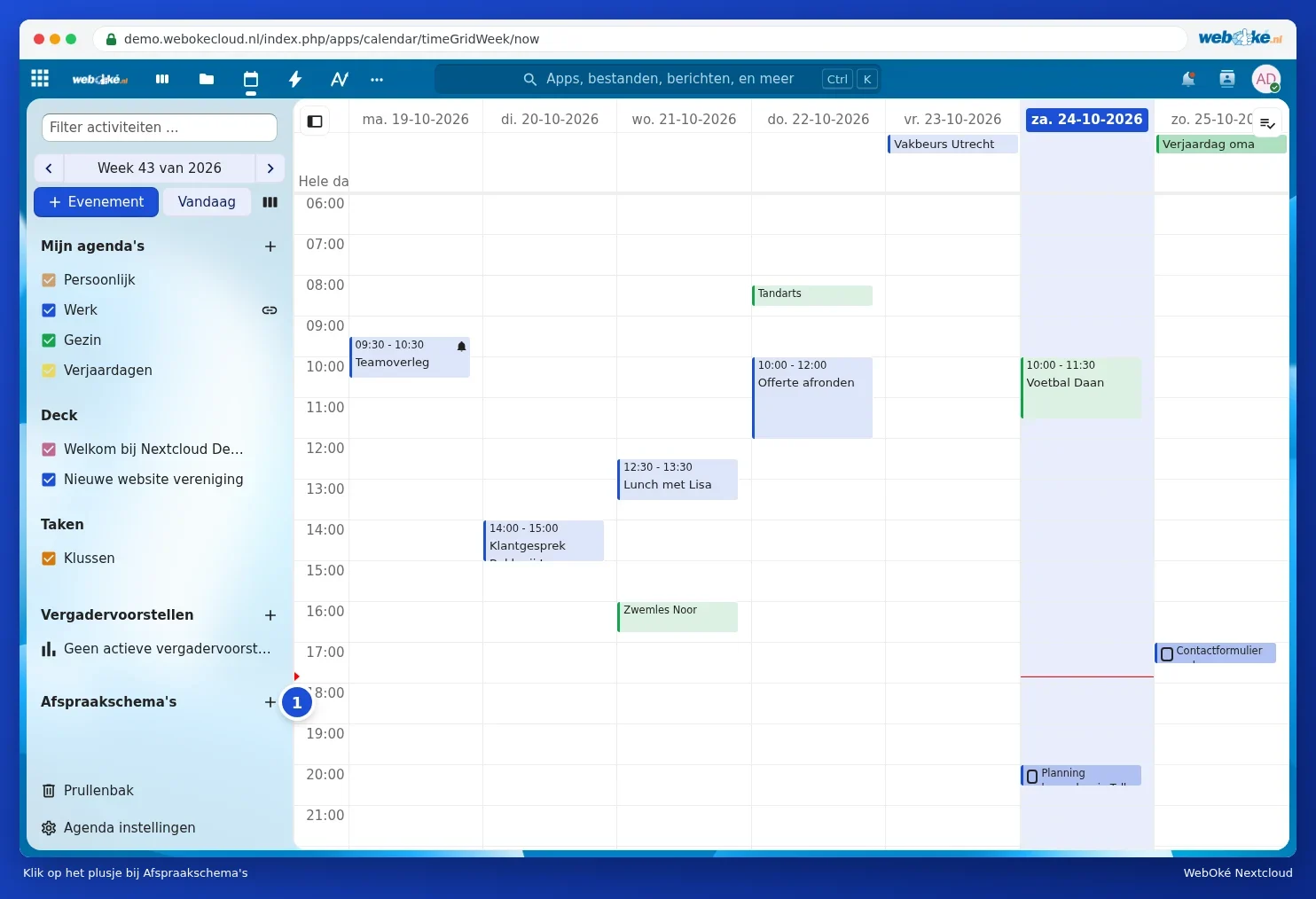
- In Calendar, click the plus icon next to Appointment schedules (1).
- In the Create appointment schedule window, fill in the details:
- Appointment name (1): the name the client sees, for example Introductory meeting.
- Location and Description: where it takes place and what the client can expect.
- Create a Talk room: every booked appointment gets its own link for an online meeting (only in packages including Office, see What is Talk and who has it?).
- Duration (minutes) (2) and Increments: how long an appointment lasts and in what intervals an appointment can start.
- Booking calendar (3): which calendar booked appointments go into. Under Calendars to check for conflicts, choose which calendars should also be taken into account, so nobody can book when you already have something else on.
- Visibility (4): leave this set to Private, only accessible via link if only people with the link should be able to book.

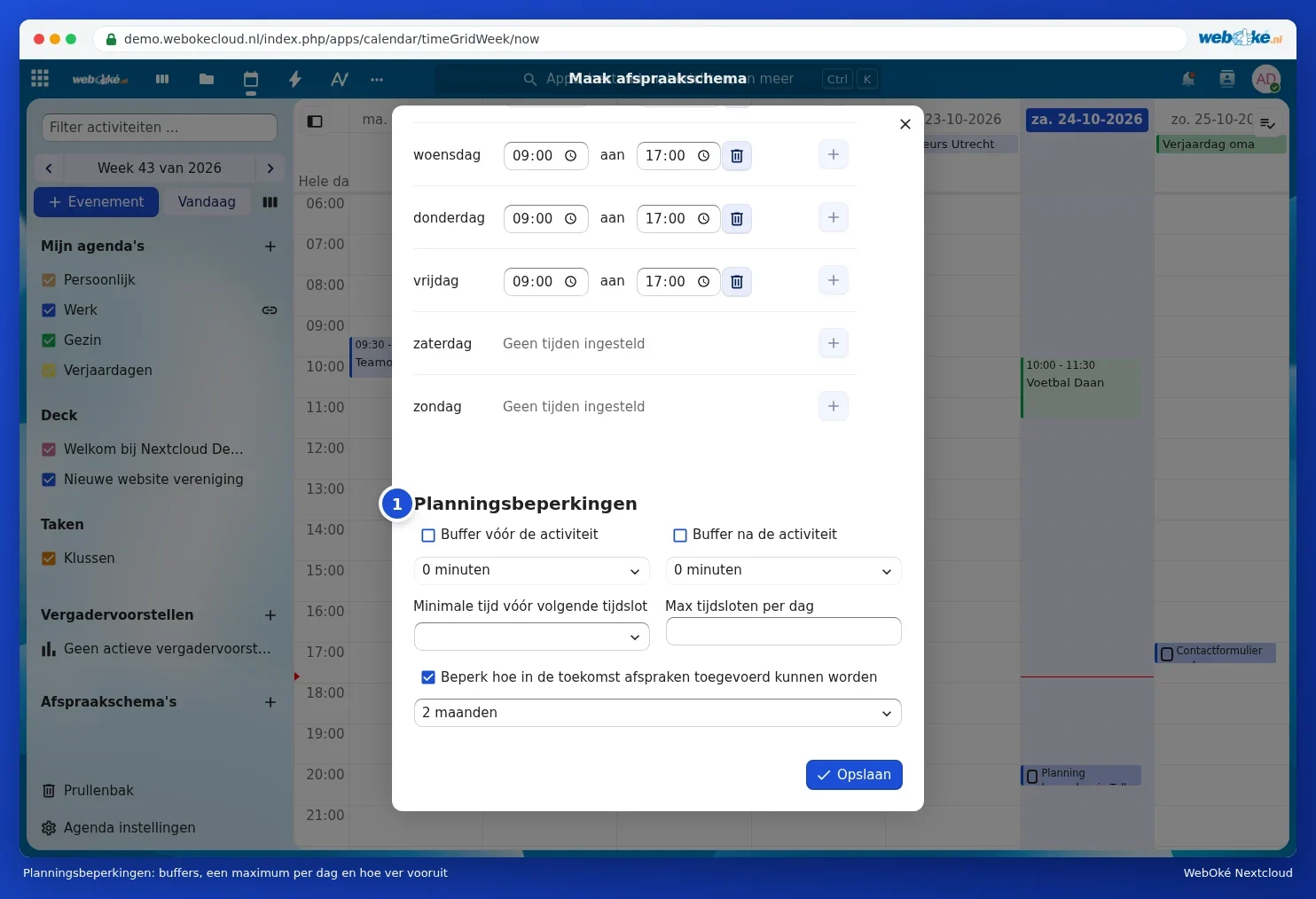
- Scroll to Booking availability. By default, Monday (1) to Friday from 9:00 to 17:00 are filled in. Adjust the times, add an extra block with the plus icon, or remove a block with the bin icon. A day with no block shows No times set.

- Under Planning restrictions (1), set a buffer before or after each appointment, the minimum notice before someone can book, a maximum number of appointments per day, and how far in advance bookings are allowed.
- Click Save.
Sharing the link
Your appointment schedule is now listed in Calendar under Appointment schedules. Hover over it with your mouse and open the menu with the three dots:
- Preview: view the booking page as a client sees it.
- Copy link: the link to your booking page, to send round.
- Copy: create a second schedule based on this one, for example for a longer meeting.
- Edit and Delete.

Send the link by e-mail, add it to your signature or put it on your website (see Putting a public calendar or booking page on your website).
How someone books an appointment
- The client opens the link and sees the available slots.
- They choose a date and a time slot, enter their name and e-mail address, optionally with a comment, and click Book appointment.
- The client receives an e-mail to confirm the appointment. The appointment is only confirmed once they've done this.
- The appointment is added to your booking calendar and you receive a notification.


Tip: check that your e-mail address is set in your profile (see Filling in your profile: name, photo, email address, language and time zone). Your Nextcloud sends the confirmations on your behalf.