
Chapter 10 · 10.2
Starting a conversation: one-to-one, group or team
Available in packages with Office. Talk is included in your WebOké Nextcloud as soon as your package has at least one Office Suite licence. Then everyone in your package can use Talk, even users without their own licence. If you don't have Office, you won't see Talk in the menu. See Which apps are included in my package?.
In Talk, everything is a conversation: a chat with one colleague, a group for your project or a fixed meeting room. In every conversation, you can chat and make calls.
A one-to-one conversation
- Type the person's name in the search field at the top left.
- Click the person in the search results. Talk immediately opens a conversation with just the two of you.
- Type your message at the bottom and press Enter.
Creating a group conversation
- Click the button next to the search field (1) and choose Create a new conversation (2). With Join open conversations (3) you see conversations that others have opened for everyone.

- The Create a new group conversation window opens. Under Name (1), enter a clear name, for example the name of your project. A Description and an image are not required.
- Under Conversation type, usually choose Default: messages, threads and calls. Scroll down in the window to find this. A Webinar has a lobby built in, handy for a meeting with people from outside (see Guests in a Talk meeting with a waiting room (lobby)).
- Click Add participants (3) and choose the people who should join. Or click Create conversation and add the participants later.

The conversation screen

- Type your message at the bottom (1). Press Enter to send it, or Shift + Enter to start a new line. The smiley icon adds an emoji, and the microphone on the right lets you record a voice message.
- Use the plus icon (2) to share a file, create a new document or start a poll. See Sharing files and viewing them together in a conversation.
- Use Start call (3) to begin a (video) call. See Video calling and meetings: camera, microphone, background and raising your hand.
- Behind the three dots (4) you'll find Conversation settings, full screen and separate breakout rooms.
- On the right, you see the Participants (5) and under Shared items everything that has been shared in the conversation. Click the cross to close this sidebar.
Adding participants: people, groups and teams
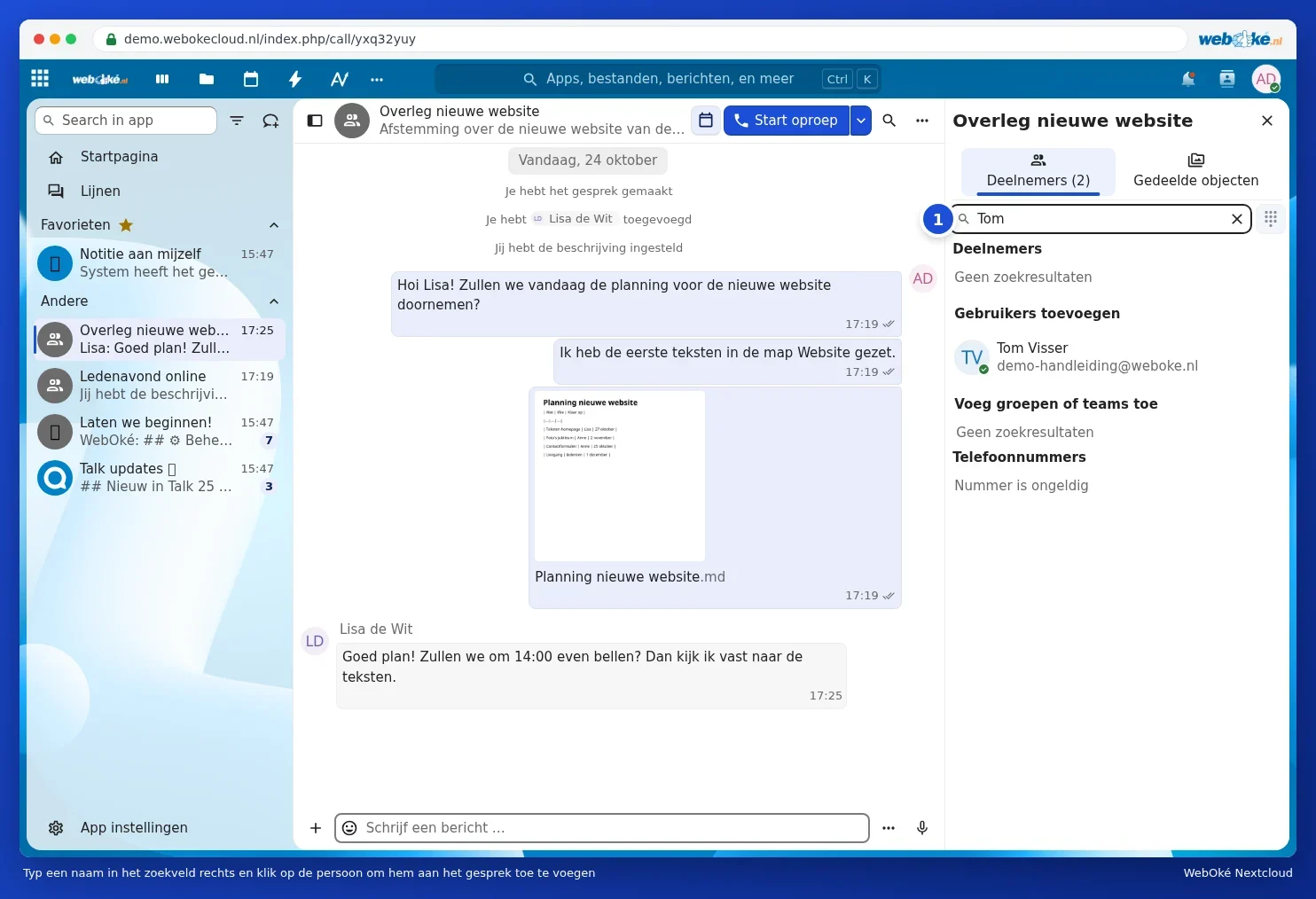
Type a name in the Search or add participants search field (1). Under Add users you'll find the people in your Nextcloud, and under Add groups or teams your groups and teams. Click them to add them. If you add a team, people who join that team later will also be included. You can read how to create a team in Creating teams and sharing a folder with your whole team.
Mentioning someone
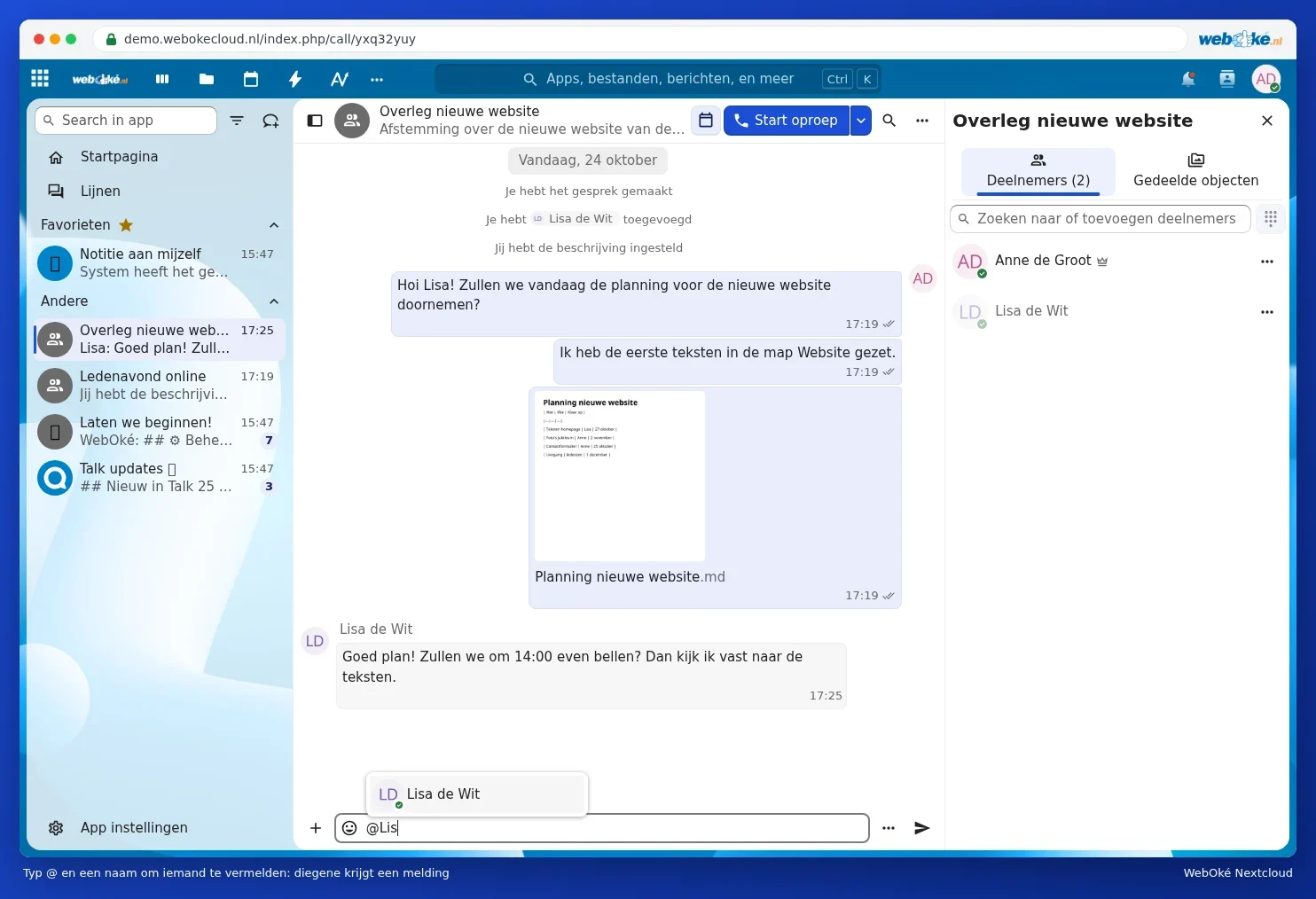
Type @ and the first letters of a name. Choose the person from the list. They'll receive a notification, even if they've set the notifications for that conversation to @-mentions only. Use @all to mention everyone in the conversation.
Handy tips for a conversation
- Reacting to a message: hover your mouse over a message. You can then give an emoji reaction, reply (the original message is shown alongside it), or use the three dots to set a reminder, edit or delete the message.
- Sending later: click the three dots next to the message field and choose Send later. Use Send without notification to send a message without the others receiving a notification.
- Threads: if a conversation gets busy, start a thread on one topic. You can see all threads on the left under Threads.
- Searching: use the magnifying glass at the top to search the messages in this conversation. The search field at the top of Nextcloud also searches Talk.
- Favourite: hover over a conversation in the list on the left, click the three dots and mark it as a favourite. It will then always stay at the top.
Leaving or deleting a conversation
Open Conversation settings and go to Danger zone. Use Leave conversation to leave it yourself, the others can carry on. Delete conversation removes the conversation for everyone, and Delete chat messages only erases the messages. Only a moderator, usually the person who created the conversation, can do these last two.