
Chapter 15 · 15.4
XLOOKUP: looking up to the left and with your own message
XLOOKUP is the successor to VLOOKUP. People ask for it because VLOOKUP has three limitations: it only searches the first column, you have to count columns, and you have to handle errors separately. XLOOKUP doesn't have these limitations, and Euro-Office simply supports it.
The structure
=XLOOKUP(lookup_value,lookup_column,result_column,"message if not found")
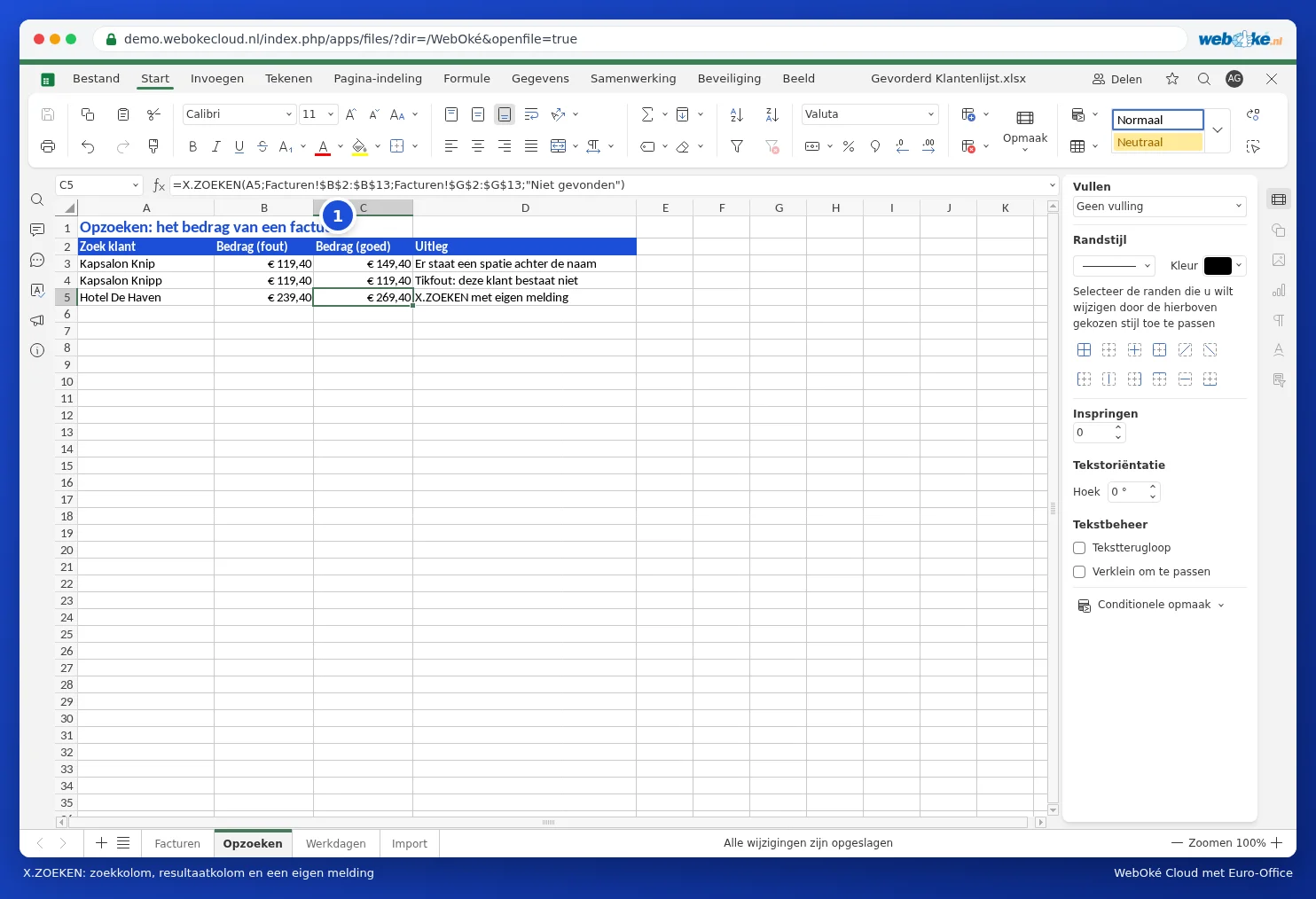
Example: looking up the invoice amount for Hotel De Haven. The customer names are in column B, the amounts in column G:
=XLOOKUP(A5,Facturen!$B$2:$B$13,Facturen!$G$2:$G$13,"Not found")
Why it's better
- No column counting: you simply select the result column. If you insert a column later, the formula still works correctly.
- Also to the left: the result column can be to the left of the lookup column.
- Exact by default: you don't need to add a 0.
- Your own message: the fourth argument is the text shown when nothing is found.
Additional options
- Fifth argument, the match mode: 0 exact match (default), -1 exact match or the next smaller value (useful for brackets), 1 exact match or the next larger value, 2 with wildcard characters * and ?.
- Sixth argument, the search direction: -1 searches from bottom to top. This lets you find the last invoice for a customer: =XLOOKUP("Bakkerij Van Dijk",B2:B13,F2:F13,"None",0,-1).
Pitfalls
- The lookup column and result column must be the same length: $B$2:$B$13 and $G$2:$G$13, not $G$2:$G$20.
- Avoid using whole columns such as B:B in large files; this slows down the spreadsheet. See Speed up a slow spreadsheet.
- If you send the file to someone using a very old version of Excel (2016 or earlier), they won't have XLOOKUP. Use VLOOKUP instead.