
Chapter 8 · 8.7
Comparing documents
Does a client send back an edited version without tracked changes? With Compare you can still see exactly what's changed. Euro-Office turns all the differences into tracked changes in your document.
How to compare two documents
- Open the document you want to use as your starting point, usually your own (older) version.
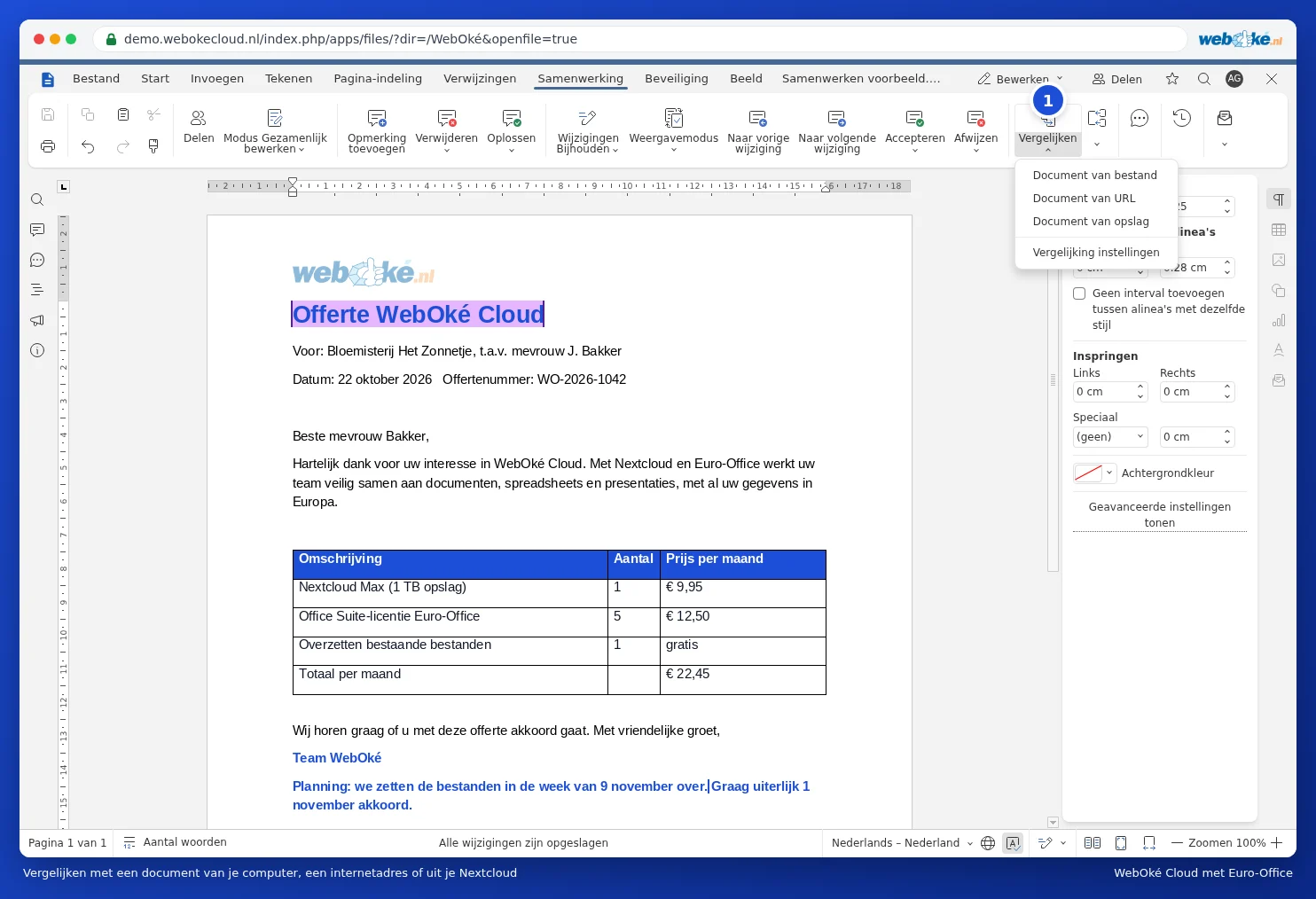
- Go to the Collaboration tab and click Compare (1).
- Choose where the other document is located:
- Document from file: a file from your computer.
- Document from URL: a file on the internet.
- Document from storage: a file in your WebOké Nextcloud.
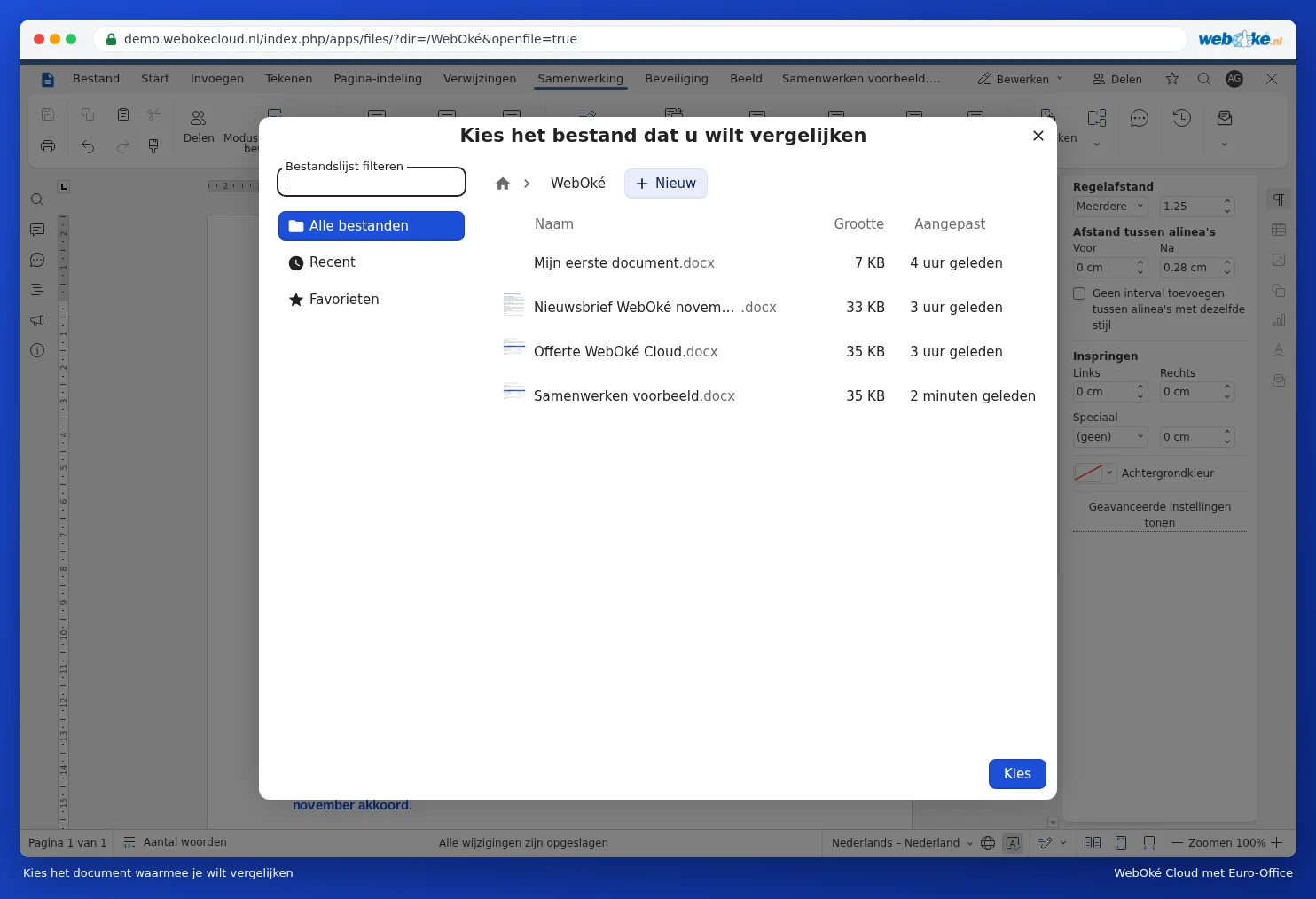
- If you choose Document from storage, the Select file to compare window opens. Go to the right folder, click the file and click the Choose button.
- Euro-Office compares the two documents and shows the differences.
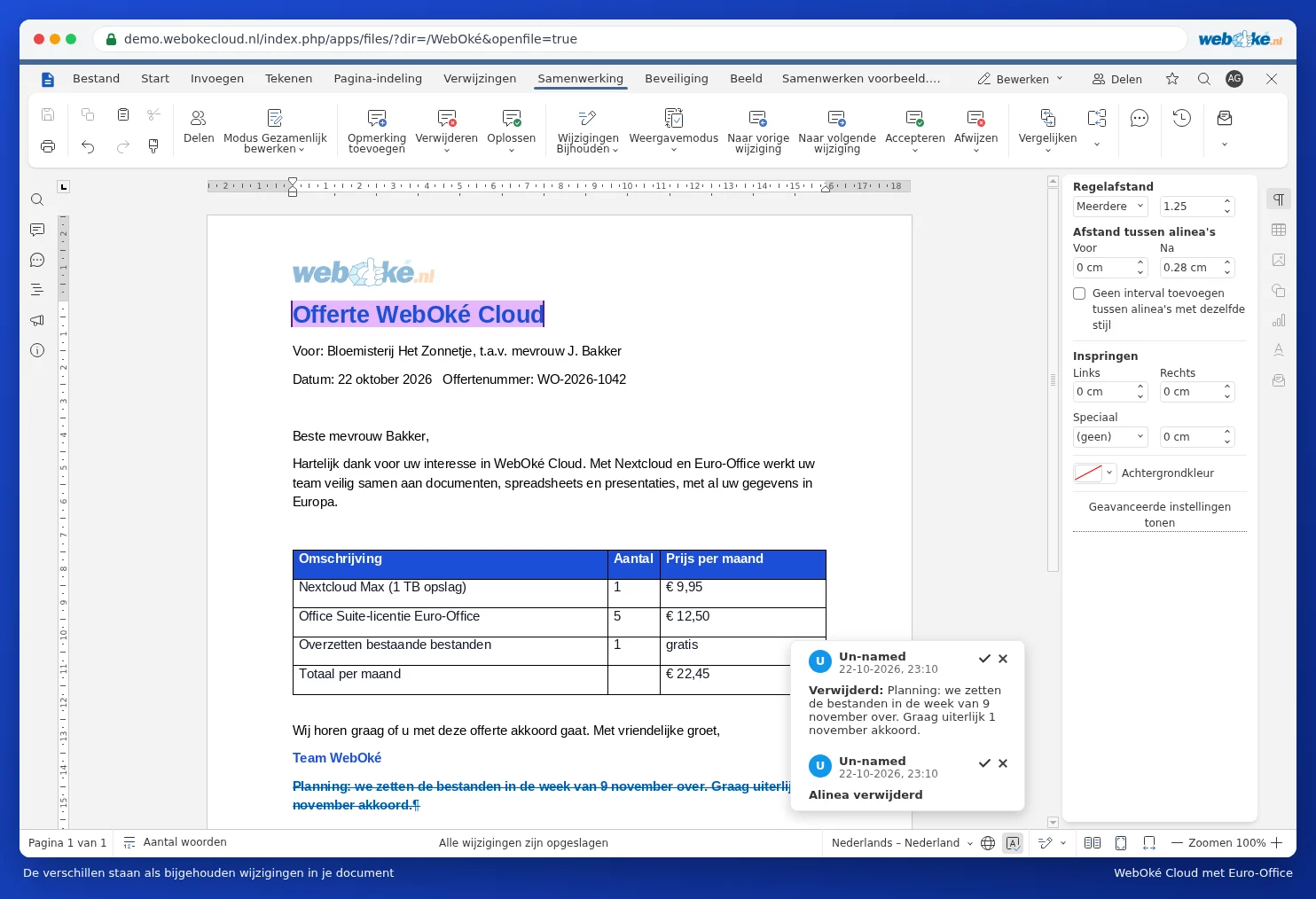
The differences appear as tracked changes: new text is coloured, removed text is struck through. In the example below, the paragraph with the planning doesn't appear in the old quote, so it's struck through. Click a change to see the explanation in the balloon. If the other document doesn't have an author listed, you'll see Un-named as the name. Go through the changes and choose Accept or Reject for each one, as described in Tracking and accepting changes.
Compare or combine?
Next to Compare is the Combine button. Use this when two people have each tracked changes in their own copy. Combine brings all those tracked changes together into one document.
Via Compare and then Comparison settings, you choose whether to compare by word or by character.
Please note: you can only compare documents if you're the only one in the document. If colleagues are also working in it, Euro-Office will let you know that comparing documents isn't available during collaborative editing. If your document already contains tracked changes, these will be treated as accepted during the comparison. So make a copy first if you want to keep them.